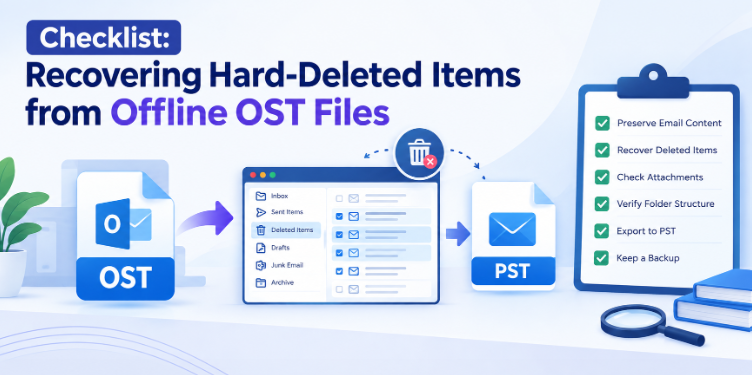
Recovering hard-deleted emails from an Offline Storage Table (OST) file can be a challenge when the Outlook profile has been deleted, the original Exchange or Microsoft 365 account is deleted, or the mailbox is not syncing properly. An OST is typically a local synchronized copy of an Outlook account, unlike a PST file, and opening it on another computer is not normally an option.
If important messages from an offline OST are permanently deleted, the first concern should be to secure the original file and prevent needless modifications. This checklist offers a practical recovery workflow and explains how you can use the TrustVare OST to PST Converter to scan an offline OST, preview the available mailbox data, recover deleted items where they are still recoverable in the file, and export the recovered data to PST.
1. Locate the Offline OST File
☐ Find the original OST file on your computer.
☐ Make sure it's the Outlook profile that contains the mailbox you want.
☐ Check date and size of file before beginning recovery.
☐ Make a working copy of the OST
Do not experiment with the only copy. If the OST is still associated with the related account, do not rebuild or delete it until the recovery attempt is complete.
2. Stop Possible Data Overwrite Actions
☐ Avoid syncing the affected Outlook profile repeatedly.
☐ Do not delete or recreate the current OST file.
☐ Avoid performing unnecessary operations to repair the original file.
☐ Save original file as evidence or backup.
This is especially true of hard-deleted items. How much can be recovered depends on how much information is left in the local database. There is no guaranty that data that has been physically overwritten or is no longer in the OST can be recovered with a conversion tool.
3. First Check Outlook’s Normal Recovery Options
Check Outlook’s Deleted Items and Recoverable Items features to see if the missing message is still there before using an offline-file recovery application.
☐ Check Deleted Items folder
☐ Search for the message lost.
☐ If available, use Outlook’s recovery option for items that have been permanently deleted.
☐ Verify that the server-side mailbox is still reachable.
This is usually the easiest fix when the original account and Exchange / Microsoft 365 connection is still working.
4. Use Offline OST When the original account is unreachable
Another scenario is when the mailbox account was deleted, the exchange server is not accessible or the OST file has been orphaned. In these cases, the local OST may contain mailbox information that is no longer easily accessible via Outlook.
The TrustVare solution supports offline and orphan OST files and provides preview of the recovered mailbox content before exporting. It allows for retrieval of deleted items, selective filtering, and exporting mailbox elements to PST.
5. Scan the OST File
☐ Install and run the recovery application.
☐ Choose the option to browse the offline OST file.
☐ Copy the OST and add the copy instead of the original whenever possible.
☐ Let the software scan the database.
The scanning stage is important because it analyzes the structure of the mailbox and identifies the available folders and items. Per the product documentation, the application scans and verifies the OST before moving its data.
6. Preview the Recovered Mailbox
☐ Show all folders in the mailbox
☐ Check Inbox, Sent Items, Deleted Items, and other relevant folders.
☐ Look for the email that was lost.
☐ Check sender, recipient, subject, date, body and attachments.
Previewing helps decide if the required information is actually recoverable before creating the PST output. The software preview feature is to show mailbox items such as emails, contacts, calendars, tasks, journals, attachments and message counts.
7. Filter the Desired Data
In case of large information content in OST, selective recovery helps to avoid unnecessary processing.
☐ Only choose the folders that apply.
☐ Use date or other filtering options where appropriate.
☐ Select the required mailbox items.
☐ Export only after selection confirmation.
The product documentation also has filters to send data selectively. So users can choose specific data instead of exporting all data from OST.
8. Export the Recovered Items to PST
Once you see the items required:
-
Choose the needed folders or retrieved messages.
-
Select PST output option.
-
Select a secure destination folder.
-
Export it.
-
Wait for the process to complete.
-
Review generated PST.
The resulting PST can then be opened or imported into a supported Outlook environment for additional review. This software is to export OST mailbox items with their properties like Subject, To, CC, BCC, Sender, Date and Time.
9. Check the Recovery
☐ Launch the output PST in Outlook.
☐ Check the folders that were recovered.
☐ Open some of the recovered emails.
☐ Check attachments.
☐ Compare dates, subjects, senders, and receivers.
☐ Verify required hard-deleted items are present.
Do not immediately delete the source OST. Keep it until full recovery has been confirmed.
10. Future Protection Recovery Checklist
Once you’ve recovered the data you need, consider the following:
☐ Regularly back up mailboxes.
☐ Export important mailboxes to PST as appropriate.
☐ Store copies of important archives in a different location.
☐ Don't use an OST as a long-term backup.
☐ Document critical mailbox file locations and ownership.
The main purpose of an OST is to act as an offline synchronized mailbox database, not as a standalone archival format.
Why Use Dedicated OST Recovery Tool?
Special application can help, when it is impossible to recover Outlook in the usual way. It can work with orphaned or inaccessible OST files, it can offer a preview before exporting, it can support selective recovery and it can convert recovered mailbox data into PST. The official product information also says that its OST to PST conversion process does not require Exchange Server and Outlook connectivity.
Severe Recovery Limitation
Hard-deleted recovery is not necessarily the same as recovering a message from Deleted Items. Once data is overwritten or deleted from the OST database, no converter can retrieve the needed data. Always work on a copy and check the preview before going ahead.
Conclusion
Getting hard-deleted items back from an offline OST is not a simple way like rebuilding the Outlook profile or deleting the existing cache. It involves a careful process. Save the OST file, try the Outlook built-in recovery options, and then scan the offline file if the original mailbox is not available.
TrustVare OST to PST Converter offers a user-friendly workflow to scan offline or orphaned OST files, preview the accessible data, select the required items, and export the recovered mailbox content to PST. The checklist and the possibility to verify the generated PST before finishing the recovery process help minimize the risk of further data loss as well as know which deleted mailbox items are still recoverable.